
Back
What should I do if I experience technical issues while using the MELP app?
The MELP app is continuously improved and updated. Most technical issues may be related to using an older version of the app.
We recommend updating the app manually or enabling automatic updates on your device.
On Android devices:
To check for and install updates:
- Open the Google Play Store;
- Search for MELP;
- If you see the Update button, tap it.
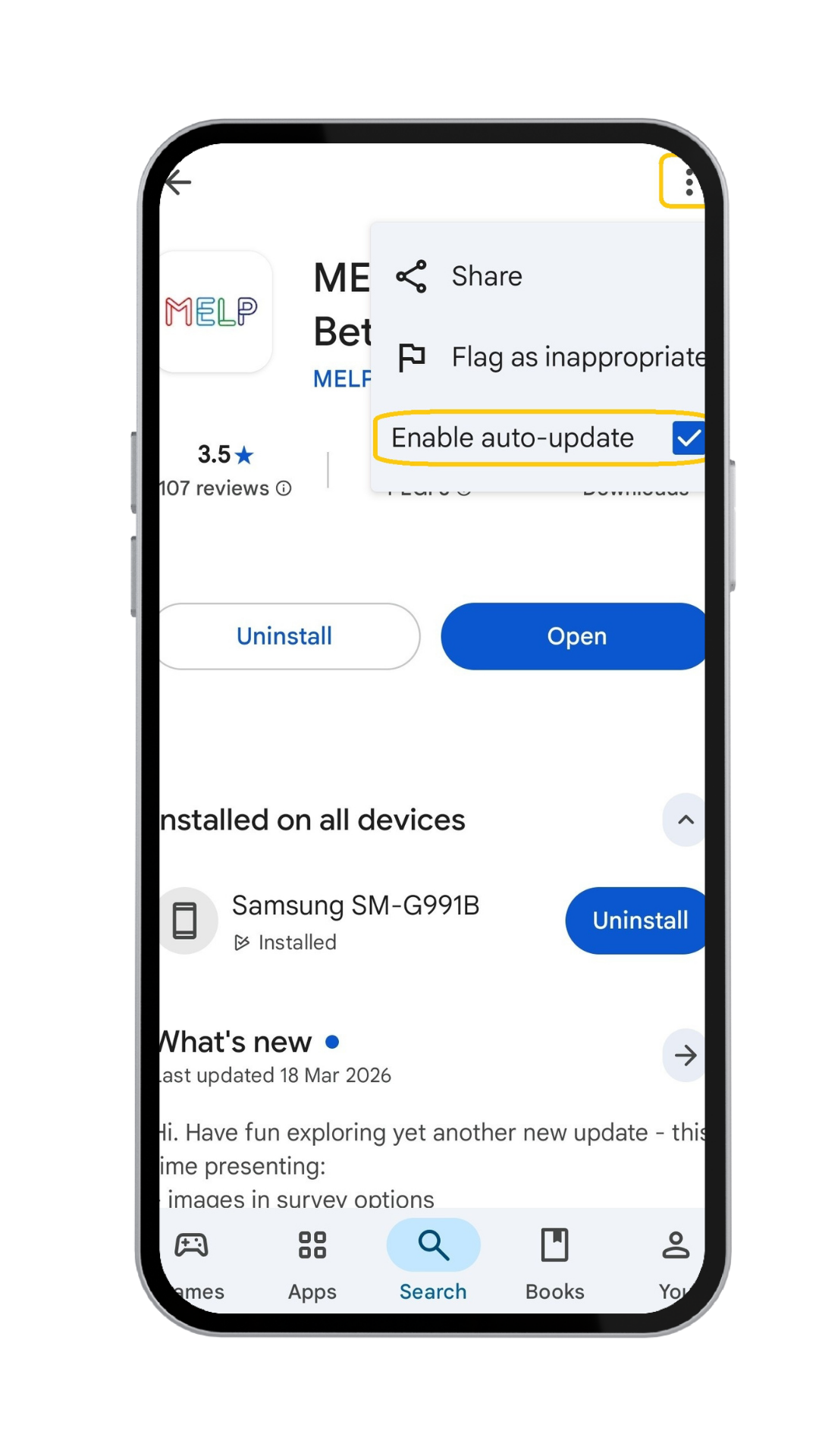
To enable automatic updates:
- Open the MELP app page in the Google Play Store;
- Tap the three dots (⋮) in the top right corner;
- Tick Enable auto update.

We also recommend:
- Closing and reopening the app after updating;
- Making sure you have a stable internet connection;
- Checking that your device has enough free storage space.
On iOS (iPhone) devices:
To check for and install updates:
- Open the App Store;
- Tap your account icon in the top right corner;
- Scroll down to the list of updates;
- If you see Update next to the MELP app, tap it.
To enable automatic updates:
- Open Settings;
- Select App Store;
- Turn on App Updates.
.png)
.png)
If the app is updated but the issue remains, we recommend:
- Signing out and signing back in;
- Restarting your device;
- If the issue continues, contacting your HR department and, if possible, sharing a screenshot or a short description of the issue.

